Scheduling
Starbucks Schedule Not Showing? What to Check First
An empty schedule screen does not automatically mean you have no shifts. Start by separating publishing delays, wrong week views and…
Read the guide →Use this practical guide to understand Starbucks Partner Hours, check your work schedule, manage shift requests, update availability, troubleshoot login problems, and find the correct partner resource for pay, time off, and benefits.
*Access varies by store and region; the 520-hour figure refers to the U.S. mainland continuing-eligibility audit, not a universal enrollment threshold. See benefits rules.
Independent website notice: This site is an informational guide and is not Starbucks Corporation, Partner Central, or an official employee login portal. Never enter your Starbucks partner number, password, security code, banking information, or tax information on this website. Sign in only through a Starbucks-provided app, an official starbucks.com page, or a link supplied by your store manager, onboarding material, or Partner Contact Center.
Choose the task that matches what you are trying to do.
Starbucks Partner Hours is the name commonly used for Starbucks scheduling tools that help eligible employees—called partners—view assigned shifts and manage work availability. Depending on your market, role, device, and current Starbucks technology, you may access scheduling through a partner web page, a private mobile application, or a Starbucks-managed employee platform.
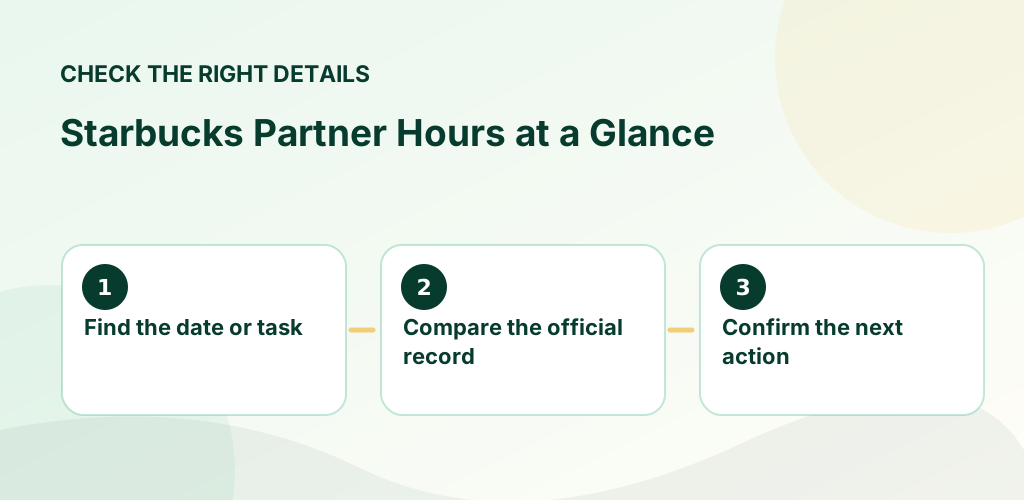
The most important point is that Partner Hours is about an employee's personal work schedule. It is different from public Starbucks store hours, the customer Starbucks app, payroll records, or the main benefits website. A partner who searches “Starbucks Partner Hours” is usually trying to complete one of a few actions: log in, see the next shift, review weekly scheduled hours, offer or exchange a shift, pick up available hours, change availability, or confirm that a schedule request was approved.
This homepage explains those tasks in plain language. It also clarifies the purpose of connected resources such as Partner Central, pay statements, benefits eligibility information, and password support. Tool names and screens can change over time, so always treat the instructions from your store manager and official Starbucks onboarding materials as the final authority.
Starbucks calls many of its employees “partners.” The term reflects the company's long-standing use of stock ownership and shared success programs, but in everyday store conversation it simply means a Starbucks employee. Starbucks Partner Hours refers to the scheduling experience partners use to see when they are expected to work and to communicate certain schedule preferences or requests.
A typical Partner Hours schedule may show your assigned store, calendar date, scheduled start time, scheduled end time, job or coverage details, total weekly scheduled hours, and changes made after the schedule was first published. Some versions may also show open shifts, shift offers, time-off requests, availability, or manager messages.
Partner Hours does not replace communication with store leadership. The digital schedule helps everyone work from the same information, but questions about attendance, local labor rules, training, coverage, missed punches, emergency call-outs, or unusual schedule changes should still be discussed with the appropriate manager.
Starbucks has publicly stated that schedules are set three weeks in advance as part of its partner-centric scheduling approach. Business needs and unplanned events can still lead to adjustments. Partners should therefore review the newly posted schedule and recheck it before upcoming shifts, especially after submitting a request or receiving a notification.
The phrase “Starbucks hours” can mean two completely different things. Store hours tell customers when a coffeehouse opens and closes. Partner hours tell an employee when that individual is scheduled to work. A store might open at 5:00 a.m., but a partner's shift could begin earlier for opening tasks or later during the day. Likewise, a closing partner may remain scheduled after the customer-facing closing time.
Do not use a public store-hours listing to determine when you should report to work. Your assigned schedule, official manager communication, and approved changes are the relevant sources. For customer opening and closing times, use the Starbucks store locator or the customer app. For personal work hours, use the Starbucks Partner Hours schedule provided to employees.
The screen names may differ, but the safe login process is generally the same.
Opening the schedule is only the first step. Read each entry carefully so you understand where and when you are working. A schedule card often includes more information than a start and end time.
Confirm that you are viewing the correct week. Mobile calendars can open on the current day while a notification refers to a future schedule. Move forward or backward deliberately and note the date.
Read both times and check whether the screen uses a.m./p.m. or 24-hour time. Arrive according to local store expectations and allow enough time to be ready for the scheduled start.
Borrowed partners, trainees, and partners supporting more than one location should verify the store number or address. Do not assume every shift is at your home store.
A schedule may identify training, coverage, noncoverage work, meetings, or another assignment. Ask a manager when the label is unfamiliar or conflicts with what you were told.
Look for notes, pending requests, approved swaps, or edits. A submitted request does not automatically change your responsibility for the original shift.
Compare the weekly total with your availability and expected average hours. Scheduled hours, hours actually worked, paid hours, and benefit-eligibility hours are related but not always identical.
Starbucks has described a scheduling model in which schedules are set three weeks in advance. This advance view is intended to give partners more stability for school, family responsibilities, transportation, appointments, and other commitments. The exact moment a new week appears can vary by store, market, and system processing.
A schedule published three weeks ahead is not a promise that no detail will ever change. Staffing needs, approved time off, partner availability, training, illness, business demand, severe weather, and unexpected events can affect coverage. Managers should communicate changes through the appropriate channels, and partners should review notifications and the current schedule.
When a new schedule is posted, compare it with your submitted availability and any approved time-off request. Raise a possible conflict promptly and respectfully. Waiting until the day before a shift makes it harder to solve a genuine mistake or arrange approved coverage.
Helpful habit: Check your newly published schedule, add confirmed shifts to your personal calendar, and then recheck Partner Hours before the workweek begins. Your official schedule remains the controlling source unless a manager confirms a change.
Partners often search the Apple App Store or Google Play Store for “Starbucks Partner Hours app.” That can be misleading because the employee scheduling application may be a private enterprise app. Private workplace apps are commonly installed through an approved enrollment process instead of appearing as a normal public consumer app.
Starbucks setup instructions have historically used Workspace ONE Intelligent Hub to enroll a device and provide access to a managed application catalog. The exact procedure can change, and not every partner, market, or device will see the same steps. Use the current quick-reference guide, QR code, server information, and group identifier supplied through official Starbucks channels.
Some older guides and third-party pages refer to AppCafé, Teamworks, or SBUXPartnerHrs. Those terms may describe a distribution catalog, a previous platform, or the schedule application itself. Do not rely on an old screenshot when your current onboarding guide displays different wording.
If first-time enrollment produces “server not found,” an invalid QR code, a failed work profile, or an app that never installs, stop repeating random internet instructions. Confirm that the QR code and setup guide are current, check your connection, disable any VPN that interferes with enrollment, restart the approved enrollment app, and ask your manager or technical support for the latest instructions. Store Wi-Fi may help in some setups, but it should not be treated as a universal requirement unless your official guide says so.
The exact buttons vary, but responsibility usually changes only after the required acceptance and approval.
Offering a shift tells eligible coworkers that you would like someone else to work it. Posting the offer by itself does not remove the shift from your schedule. Watch for an acceptance and the status required by your store's process.
A swap generally involves exchanging one assigned shift for another eligible shift. Both partners must be qualified and available, and leadership may need to review labor, overtime, role coverage, and scheduling rules.
An open-shift or marketplace feature may show available hours at your store or, where supported, nearby locations. Confirm the store, role, time, travel, and approval status before planning around it.
A digital shift offer is a planning tool. It is not a substitute for the required call-out process when you are sick, face an emergency, or cannot report for a scheduled shift. Follow the attendance and notification procedure used by your store and local market.
Do not assume that sending a message to a coworker, posting in a group chat, or tapping “offer” completes the process. The key question is whether the company schedule now shows the approved replacement and whether the responsible manager has received the required notice.
Remember: “I offered the shift” and “the shift was covered and approved” are not the same status.
Your availability tells store leadership when you are generally able to work. It can include days of the week, earliest start time, latest end time, school or childcare restrictions, and the average number of weekly hours you prefer. Accurate availability helps managers build a workable schedule, but availability is not the same as an automatic guarantee of particular hours or days off.
Review your availability after a class timetable changes, transportation becomes unavailable, family responsibilities shift, or your desired weekly hours change. Submit updates as early as possible because a manager may already be building future schedules. A new availability request can remain pending until it is reviewed and may take effect on a future date rather than immediately.
When entering availability, be realistic and specific. A very narrow window can reduce the shifts you are eligible to receive. A very broad window that you cannot consistently honor can create repeated conflicts. Discuss your goals with your manager so the digital entry and workplace conversation match.
The times you are normally able to work. This helps determine which shifts can be assigned.
The approximate average hours you would like. Store demand, qualifications, and staffing still affect actual scheduled hours.
A request for specific dates or times when you do not want to be scheduled. Approval is separate from normal availability.
Where supported, partners can submit a time-off request through the scheduling system or Partner Central workflow. Choose the correct date range, partial-day window, and available request type. Add only the explanation required by company policy and avoid placing sensitive medical details into a general scheduling note.
Submit planned requests well before the schedule is created. Approval depends on staffing, previously approved requests, store operations, local requirements, and the type of leave. A request marked “submitted” or “pending” is not yet approved.
After approval, check that the relevant schedule reflects the decision. If the dates still show assigned shifts, contact the manager promptly rather than assuming the app will correct itself later.
Time-Off and Vacation Guide →These names are related, but they are not interchangeable.
Third-party websites often use these names loosely, which can create the impression that one portal controls everything. In practice, scheduling, payroll, HR information, and benefits may open in different systems. Start with the task you need to complete rather than assuming every link belongs inside the Partner Hours app.
The weekly number displayed in Starbucks Partner Hours is usually a scheduled-hours total. It shows what the schedule expects you to work. Your final paid hours come from timekeeping records, approved edits, paid leave, and payroll processing.
If you stay late, leave early, attend required training, use eligible paid time, miss a punch, or receive a manager correction, your paid total may differ from the original schedule. Review your pay statement and promptly report a possible error through the approved store process.
Benefit-eligibility hours can use another calculation. Partner Central and official benefits materials are the right places to monitor the hours used for an eligibility audit. Do not estimate benefits status solely from the future shifts visible in the schedule app.
How to View a Paystub →Partner Hours can help with planning, but official eligibility records belong in Partner Central and Starbucks Benefits.
Starbucks offers a broad benefits program to eligible U.S. partners, including many hourly partners who work part time. The phrase “20 hours” is common because Starbucks describes major benefits as available to eligible partners averaging about 20 or more hours per week. However, eligibility is determined through official rules and audit calculations—not by one week's schedule.
For U.S. mainland retail hourly partners, the continuing-eligibility process may require a specific number of benefit hours during a defined audit period. Hawaii, Canada, corporate roles, licensed-store employees, and other groups can follow different rules. Use your pay statement, Partner Central eligibility information, and current Starbucks Benefits documents to determine your actual status.
Eligible partners may choose medical, dental, vision, life, and disability options. Plan availability, employee cost, and enrollment rules vary.
The Starbucks College Achievement Plan provides eligible U.S. partners 100% upfront tuition coverage for a first bachelor's degree through Arizona State University online, subject to program terms.
Programs can include Bean Stock, a 401(k) savings plan with company match for eligible partners, and stock-purchase opportunities.
Starbucks promotes mental and emotional health support through Lyra and related partner-family resources. Current session limits and eligibility should be confirmed officially.
Starbucks Careers lists a weekly coffee or tea markout and a 30% discount on drinks, food, and merchandise among U.S. partner perks, subject to current rules.
Depending on eligibility and circumstances, programs may include paid parental leave, sick time, vacation, and other leave or family-support resources.
Benefits reminder: This section is an overview, not a plan document. Eligibility, covered services, contribution amounts, waiting periods, and available programs can change. Use Starbucks Benefits and your official partner records for decisions.
Match the problem to the safest next step instead of repeatedly entering credentials.
Contact your manager when the issue affects today's shift, a schedule conflict, time-off approval, store assignment, or coverage. Contact technical or account support when the problem involves app enrollment, repeated sign-in failure, multifactor authentication, password reset, or a locked account.
For U.S. partner HR questions, Starbucks Benefits lists the Partner Contact Center as (888) SBUX-411. Phone prompts and support responsibilities can change, so verify the number on an official Starbucks page before sharing personal details.
Password Reset Help →Search results for employee portals often include independent guides, copied login designs, advertisements, and outdated links. A page can use Starbucks-related words or colors without being authorized to collect partner credentials.
Before entering credentials, confirm that the page is on an official Starbucks-controlled domain or was opened directly from a trusted workplace application. A domain containing the word “starbucks” is not automatically official.
A one-time code confirms your identity. Do not read it to an unofficial support agent, send it through social media, or type it into a third-party guide.
Do not reuse your Starbucks password on unrelated websites. A unique password reduces the damage if another service experiences a security breach.
Log out completely, close the browser, and do not save passwords on a public or shared computer. Avoid downloading pay statements unless you can store them securely.
An independent information website should explain where to go, not imitate the Starbucks sign-in screen or collect your partner number.
Change the password through an official process and contact approved support if you entered credentials on a suspicious page or received an unexpected security prompt.
New partners receive a large amount of information at once. Use this checklist to establish reliable schedule access before you need to solve an urgent problem.
Review a newly posted schedule, check again at the start of the workweek, and confirm after any request or manager conversation.
Add confirmed shifts to a phone calendar with travel reminders. Keep Partner Hours as the official source when the two differ.
Submit availability changes, planned time off, and coverage requests as soon as you know about them.
Where permitted, retain the approved status or relevant manager message until the updated schedule is visible.
Compare scheduled hours with your preferred average and discuss persistent differences through the appropriate leadership channel.
Use the app for normal requests, but directly follow store procedures for same-day illness, emergency absences, or safety concerns.
Starbucks Partner Hours is the employee scheduling experience used by partners to review assigned shifts and, where supported, manage availability, open shifts, shift requests, and time-off activity. It is not the same as public store opening hours.
Open the official Starbucks scheduling link or approved employee app supplied by your manager or onboarding material. Enter the username format requested on the official screen and complete multifactor authentication when prompted. Never enter partner credentials into an independent guide website.
Partners can generally view schedule information remotely through the approved web or mobile scheduling method. Some employment-information changes in Partner Central may require a Starbucks device even when viewing is available from a personal device.
Starbucks has publicly described schedules as being set three weeks in advance. The exact publishing time and any later adjustments can vary by store and business circumstances.
The scheduling app may be distributed as a private enterprise app. Use the current QR code and installation guide supplied by Starbucks rather than downloading an unknown app based only on its name or logo.
Some Starbucks mobile setup instructions use Workspace ONE Intelligent Hub to enroll a personal device and provide access to approved workplace applications. Follow the current official enrollment document because server and group settings can change.
Use store Wi-Fi when the current official setup guide or support representative instructs you to do so. It may help with some enrollment problems, but it should not be presented as a universal requirement for every device and location.
The cause may be an old QR code, incorrect enrollment setting, network restriction, VPN, or temporary service issue. Request the newest setup instructions and contact approved technical support rather than entering server details found on random websites.
Open the assigned shift and choose the available offer, swap, release, or marketplace option. Submit the request, monitor coworker and manager responses, and confirm the final schedule. The original shift remains your responsibility until the required process is complete.
No. Offering a shift only starts a coverage request. A qualified coworker may need to accept it, and management may need to approve the change. Follow the original schedule until the app or manager confirms otherwise.
Some markets and scheduling tools may display eligible shifts outside a partner's home store. Availability depends on qualifications, local setup, travel, labor rules, manager approval, and whether the feature is enabled.
Open the availability area in the approved scheduling tool, enter the new days and time ranges, select an effective date if requested, and submit the change. Discuss it with your manager because the request may need approval and may not affect a schedule that is already posted.
Pay statements and related personal employment information are generally handled through Partner Central or the current official payroll resource, not the schedule view. Partner Central can also provide access to balances, direct deposit, tax withholding, and eligibility information.
Starbucks describes major U.S. benefits as available to eligible part-time partners averaging about 20 or more hours per week. Actual eligibility uses official rules and audit periods, so check Partner Central and the current Starbucks Benefits plan information rather than relying on one week's schedule.
Verify the week, store, and most recent update, then contact your manager promptly. Do not simply ignore the listed shift. Ask which schedule is controlling and request that the digital record be corrected when necessary.
Use the password-reset or self-service option on the official Starbucks sign-in page. If the account is locked or verification fails, contact approved Starbucks support or your manager. Do not pay a third party to reset an employee account.
No. This is an independent informational website. It does not represent Starbucks Corporation and should never collect your partner login, password, one-time code, pay information, or banking details.
Use official pages to verify policies, benefits, contact information, and current access methods. Employee systems may require sign-in and may not display public content before authentication.
Official partner resource for personal employment information such as pay statements, balances, direct deposit, address, tax withholding, and eligibility details.
Open Partner Central →Official overview of U.S. and Canadian partner benefits, eligibility, plan resources, and service-provider contacts.
Open Starbucks Benefits →Public information about health and well-being, financial support, education, partner perks, and career opportunities.
View Careers Benefits →Verification: Official policies for U.S. retail partners can be checked in Starbucks’ benefits eligibility rules, scheduling statement, dress code update and partner contacts. We are not an official login destination.
Choose the guide that matches your task. Remember to keep all partner credentials on official Starbucks systems.
The goal is to avoid surprises: look at the actual published entry, confirm the relevant date and store, and keep a record of any approved change. A text message or conversation alone may not update the official schedule. If you have a question about a personal employee account, eligibility, time entry or workplace decision, rely on an employer-controlled record and support channel.
Choose the guide that matches your situation below. Each article gives a concrete example, common mistakes to avoid and official Starbucks references where available. These are informational guides, not a substitute for your store's current policy documents.
An empty schedule screen does not automatically mean you have no shifts. Start by separating publishing delays, wrong week views and…
Read the guide →
The often-searched 520-hour figure refers to a specific continuing-eligibility measurement, not a universal requirement for every benefit…
Read the guide →
A phone is convenient for schedules, but a search result that looks official can still be a fake sign-in page.
Read the guide →